
Job alerts in your Discord
New grad and internship postings go stale fast. By the time a role reaches a list you check on Sunday, it has often been open for a week and has a few thousand applicants. The FreeCareerPath bot pushes them into a channel you are already in, as they are found.
Setup is two minutes. This covers every command, what each one needs, and the two settings people get wrong.
Add the bot
Open the bot invite link, pick your server, and approve.
Check that FreeCareerPath bot now shows in the server's member list. If it does not, it was added without its bot user: the commands still answer, but it cannot post, and any subscription vanishes at the first alert. Remove it in Server Settings → Integrations and add it again with the link above.
One thing to know before you start: the bot works inside a server, not in DMs. Every command is registered for servers only, so if you try one in a direct message it will not appear. If you want alerts for just yourself, make a private server — Discord lets you create one in a few clicks, and you can be its only member.
Instant alerts
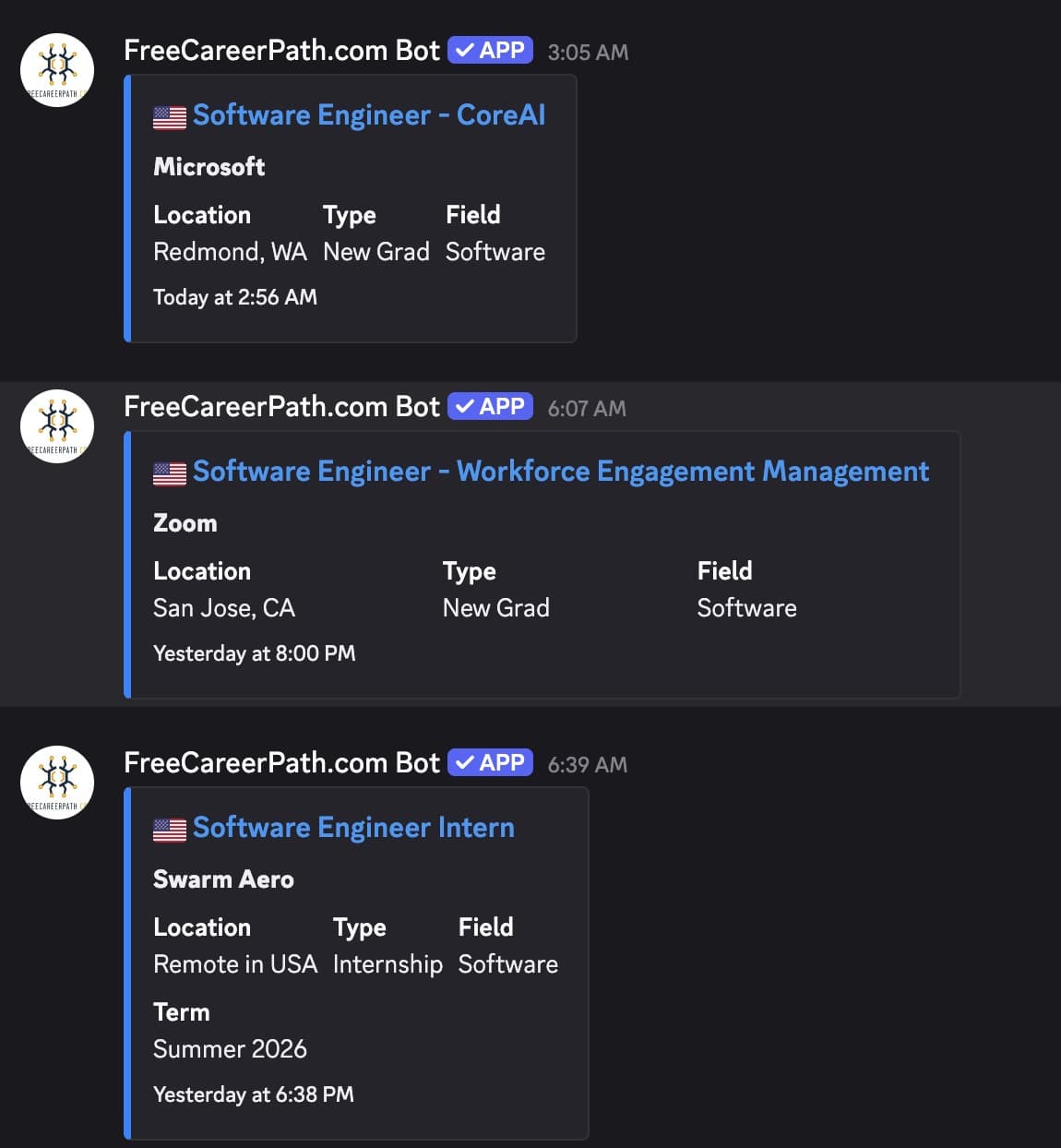
The main command. New postings land in the channel as they are found:
/subscribe region: United States level: New Grad
Two options are required and two are optional:
- region — United States, Canada, Vietnam, or Remote.
- level — Internship or New Grad.
- field (optional) — Software, AI / ML / Data, Hardware, Quant / Trading, Product, Design, Finance / Accounting, Marketing, Sales, Business / Ops, or Other. Leave it out and you get all fields.
- channel (optional) — where to post. Leave it out and it uses the channel you ran the command in.
Run it more than once to combine things. A server covering both interns and new grads in the US needs two subscriptions, not one:
/subscribe region: United States  level: Internship
/subscribe region: United States  level: New Grad
One digest a day instead
If a live feed is too noisy, subscribe to a daily summary and pick the hour it arrives:
/subscribe-daily region: Canada level: Internship time: 8 AM Pacific Time
Same region, level, field and channel options as /subscribe, plus time —
an hour of the day, listed in Pacific Time. Convert to your own timezone when
you pick it; this is the setting people most often set wrong and then wonder
why the digest shows up in the middle of the night.
You can run both. Instant alerts for the field you actually want, a daily digest for everything else, is a reasonable setup.
Try it before you commit
Two commands show you results without subscribing anything. Both reply privately — nobody else in the channel sees the output:
/latest region: United States level: New Grad count: 10
/latest shows the most recent postings, one to ten of them, five by default.
It is the fastest way to see whether a region and level combination is worth
subscribing to.
/daily-preview region: Vietnam level: New Grad
/daily-preview shows what tomorrow's digest would contain. Use it to check a
field filter is not too narrow before you commit a channel to it.
Check and change what you have
/subscriptions
Lists everything this server is subscribed to. Run it first whenever a channel is getting more or less than you expected — usually the answer is a subscription somebody set up and forgot.
To stop one:
/unsubscribe region: United States level: New Grad
Every option on /unsubscribe is optional, and blank means all. That is
the second thing people get wrong. A bare /unsubscribe removes everything for
the current channel, not just the last thing you added. Name the region and
level you want gone if you want to keep the rest.
There is also /help if you want the command list inside Discord.
Permissions, and who can run what
Anything that changes what a channel receives requires the Manage Server
permission: /subscribe, /subscribe-daily, and /unsubscribe. That is
Discord's own check, not ours — it stops any member from redirecting a feed
into a channel.
Anything read-only works for everyone: /latest, /daily-preview, and
/subscriptions.
So if a command does not show up when you type /, it is almost always this.
Ask a server admin, or run it in a server you own.
What the bot can and cannot see
Slash commands only. It cannot read your messages, see your member list, or moderate anything. It posts in the channels you name and nowhere else.
Remove it any time in Server Settings → Integrations, and everything it was doing stops immediately.
A sensible starting setup
If you want one thing to copy, this is a good default for a study group or a university server:
/subscribe region: United States  level: New Grad  field: Software  channel: #jobs
/subscribe-daily region: United States  level: Internship  time: 9 AM Pacific Time  channel: #jobs
Live alerts for the roles most people in the server are chasing, and one daily digest for the rest, both in a channel people can mute if they want to.